Gaming Keyboard Input Control Technologies

Gaming Keyboard Input Control Technologies

ADVANCED INPUT CONTROL

Precision-engineered features that give you full command over every keystroke. React faster, execute cleaner, and stay in control for near-instant responses in FPS games.

RAZER™ SNAP FLEX

With Dual Actions per Keystroke

Razer™ Snap Flex lets you assign two distinct actions to a single key—one on press and another on release. With the ability to execute two commands without ever moving to another key, you'll experience a seamless advantage in speed and efficiency that is especially useful for fast-paced games like first-person shooters and MMOs.

  • Pull Grenade Pin
  • Jump
  • Throw
  • Assign to left mouse button

Diagram demonstrating game play without Razer Snap Flex. Press assigned Left Mouse button to pull grenade pin. Press Spacebar to jump.  Pressing T key again to throw grenade
  • Pull Grenade Pin
  • Jump + Throw
  • Assign to Left Mouse Button

  • Assign to Space Bar

Diagram showing how to throw a grenade: left side depicts a steady throw, right side illustrates a throw with a backward arm motion.
  • Key Press

  • Key Release

DYNAMIC KEYSTROKE

With Instant Cancel Control

Dynamic Keystroke lets a single key perform up to four actions based on how far it's pressed and released. With instant input cancellation at any point in the keystroke, it unlocks advanced macros, more responsive movement controls, and deeper gameplay customization.

  • Activates on initial switch press

  • Activates when the switch reaches the set actuation point

  • Activates when the switch release

  • Activates when the switch reaches the set of actuation point

Diagram of a keycap with parts labelled A, B, C and D

DUAL-KEYPRESS PRIORITY

Smooth and Precise Directional Control

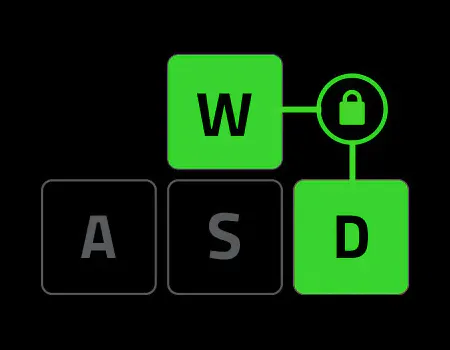
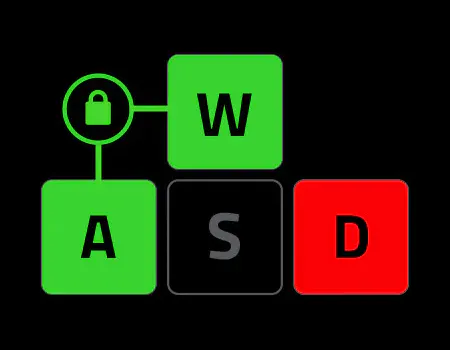
Dual-Keypress Priority enhances WASD handling by allowing instant inputs from simultaneous keypresses upon release of other keys, delivering precise control during competitive play.

  • Diagram with keys labeled W (green), A (green), D (red), and S (black), showing a lock icon connected to W and A

    First Input

    Extra Keys don’t override

  • Diagram of WASD keys, showing W and D key connected to a lock icon

    On release

    Priority shifts to new pair
    Release locked key
Advanced Input Control is available for